 Syndesk
Connect to computer
First confirm that both computers use the same account and have been activated, then connect to a network that can access each other.
1. Select the main controller, arrange the screen position
Set the computer connected to your keyboard and mouse as the server and note its network address. Set the other computers as clients and enter that server address.
Add each client in the server configuration, using the exact name shown on that client. Arrange the screens to match your desk and save the layout.
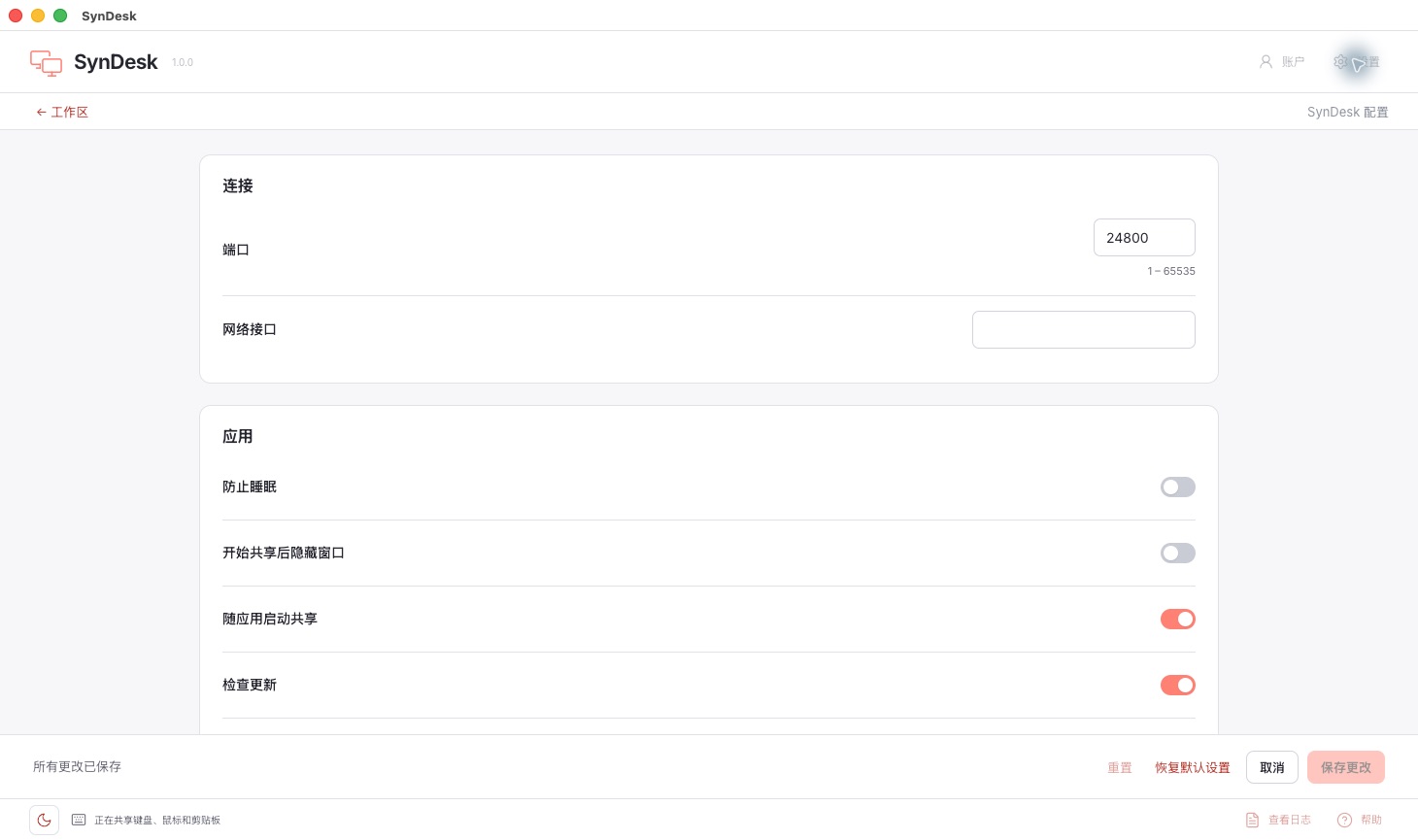
2. Check permissions and trust the connection
On macOS, grant the Accessibility and input permissions requested by the app. On Windows, check your firewall rules. On Linux, check your display protocol, desktop environment and input permissions.
Keep TLS enabled. When asked to trust a certificate for the first time, compare its fingerprint with the other computer before accepting. Do not trust a connection you cannot identify.
3. Test cross-screen input and copy-paste
Start the server and client. Move the mouse across a configured screen edge and check that keyboard input follows. Enable clipboard sharing if needed, then test with a short piece of plain text.
Get two computers working reliably before adding more. General file transfer, screen mirroring and remote desktop are not included.
Troubleshooting
- Signed in, but sharing will not start
- Check that this computer is activated, your license or trial is valid, and a device slot is available. Refresh your account status. Follow the retry instructions for network or secure-storage errors.
- The computers will not connect
- Check the server address, computer names, whether both devices are running, and whether the firewall permits the connection. Guest Wi-Fi and isolated networks can prevent computers from reaching each other.
- The pointer moves to the wrong screen
- Make the server’s screen layout match the physical position of your displays.
- Connected, but input does not work
- Check your system’s input permissions. On Wayland, verify compatibility with your desktop environment.
- Copy-paste does not work
- Check the versions and clipboard settings on both computers, then try plain text. Supported content can differ between operating systems.
- Paid, but cannot see your license
- Check that the app and website use your purchase account. Look up the order status in your account; do not purchase again while payment is processing. Send support your order ID, operating system version and error message. Never send passwords, verification codes or card details.
Certificate error or disconnected after connection
First check the version, account, and device activation status on both ends. The error 'peer did not return a certificate' indicates that the other end did not provide the required certificate, and this should not be used alone to determine a membership issue. Keep encryption enabled, and check the certificates and fingerprints at the same time on both ends; do not trust connections from unknown sources.
When contacting support, provide both ends of the system, app version, and error logs, do not provide passwords or verification codes.
Continue with audio sharing
Let the secondary device use the primary device's microphone, and transmit the secondary device's audio as needed.