Move across. Keep going.
Move your mouse to the next configured screen. Your keyboard follows. Keep working without reaching for another set of controls.
 SyndeskWork seamlessly across devicesKeyboard and mouse sharing
Create on Mac. Test on Windows.
Move your mouse across the screen edge and keep typing. Make two computers feel like one workspace.
Windows · macOS · Linux Check system requirements and releases
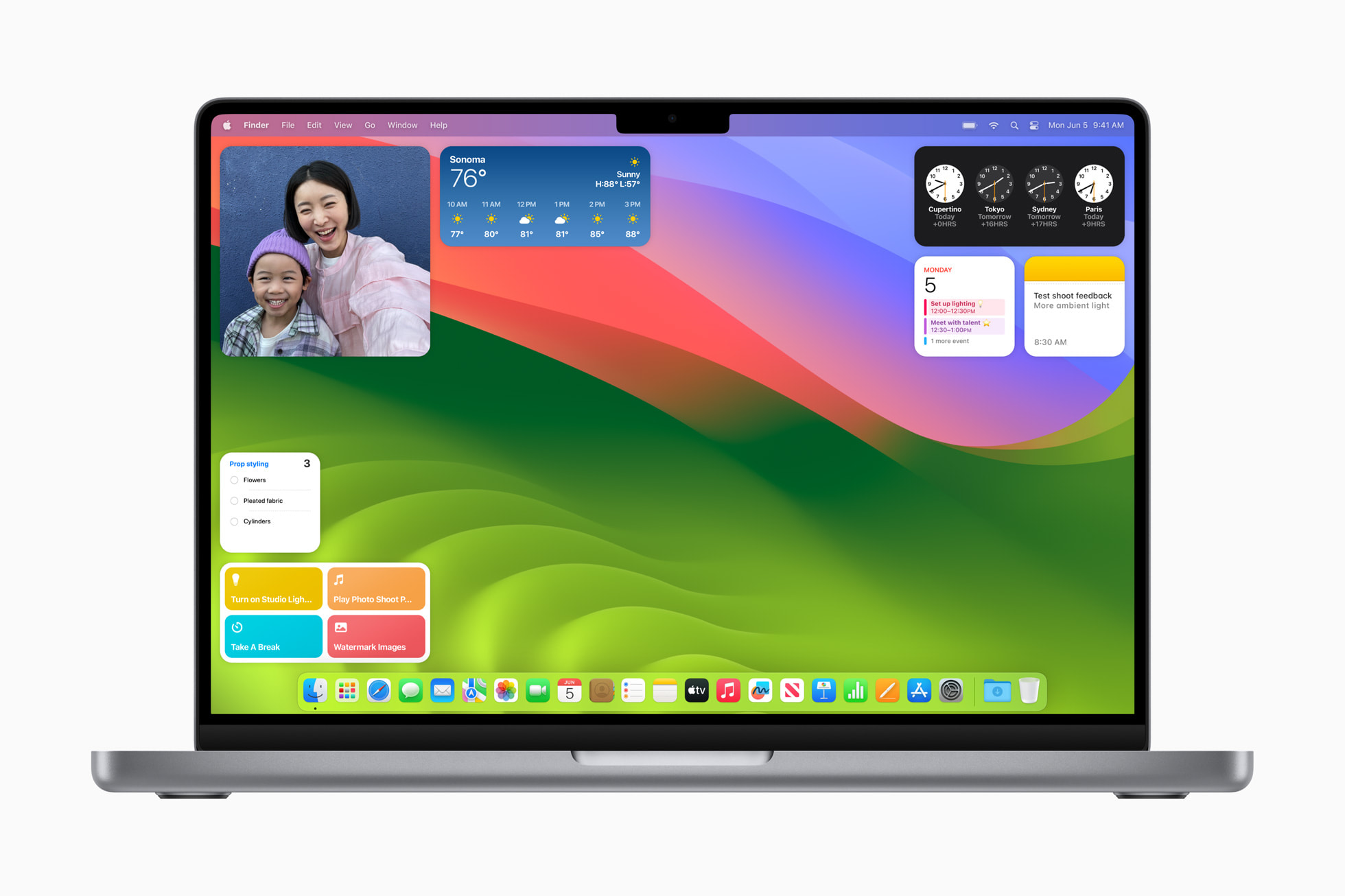
Write and create
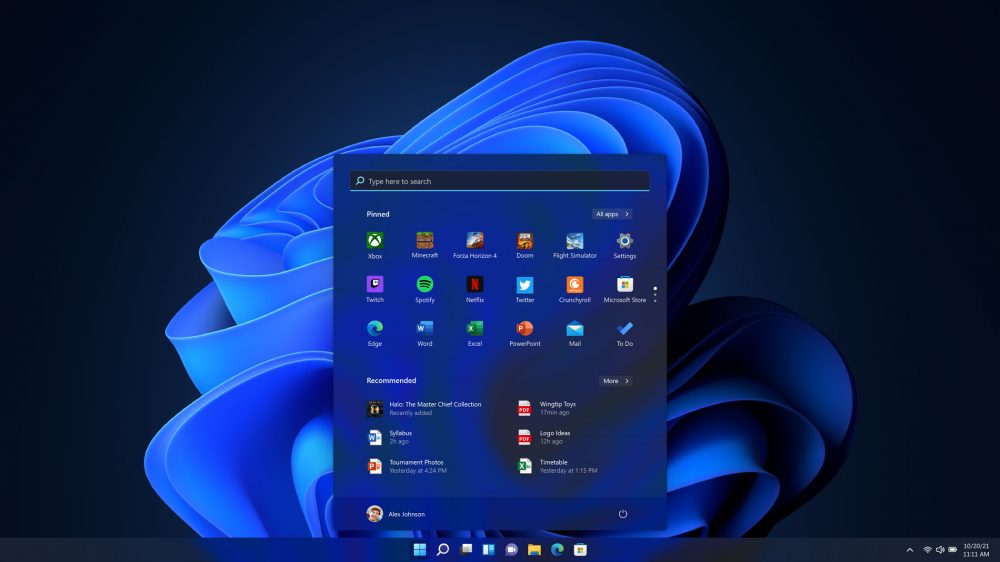
Develop and test
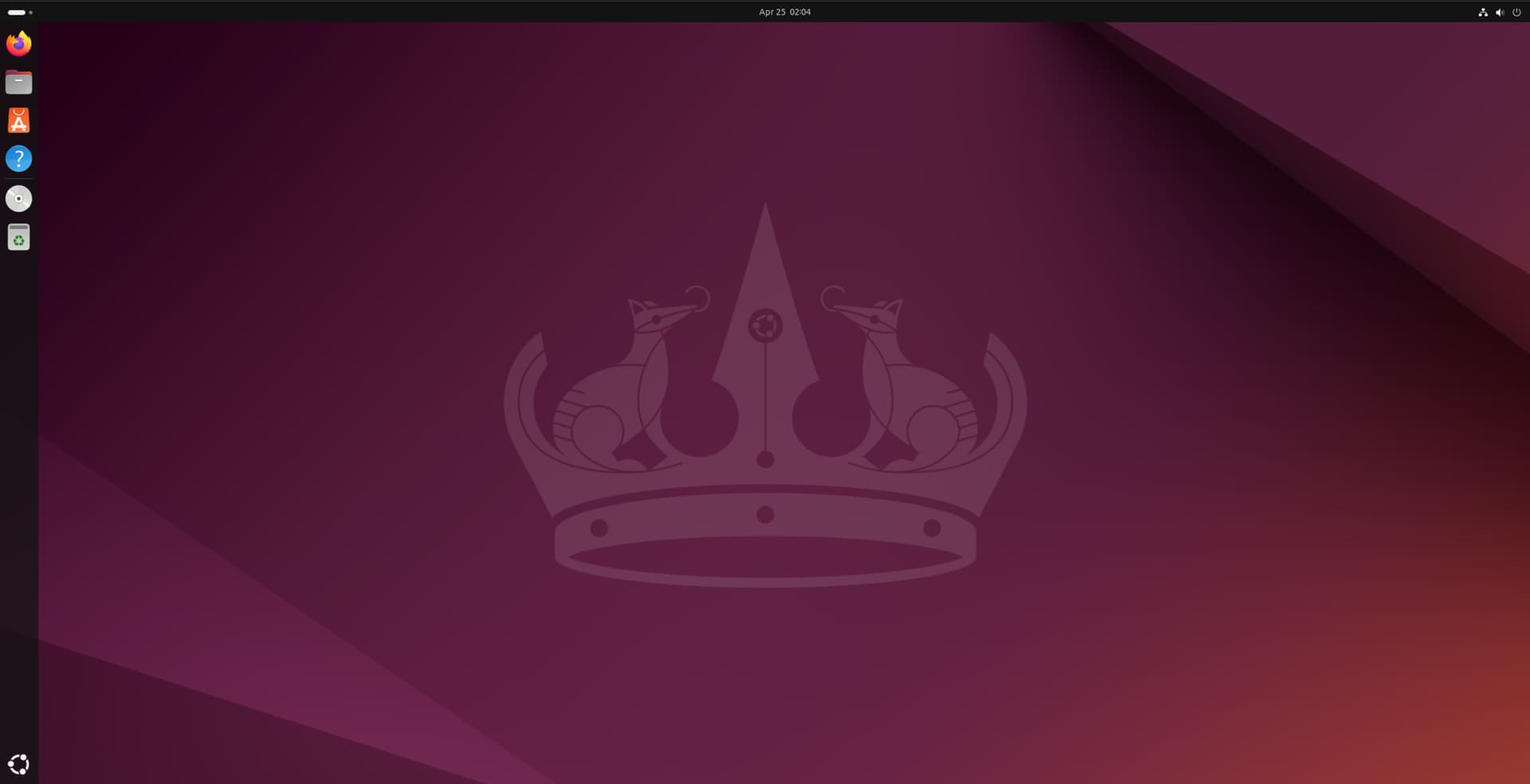
Tools and services
Interactive illustration, not a live connection. Select a system to see how switching works.
Less switching. More focus.
Keep the systems you need.
Use the keyboard and mouse you already know.
When the mouse crosses the edge of the screen, the control switches. This is an interaction demonstration and does not connect to your device.
Move your mouse to the next configured screen. Your keyboard follows. Keep working without reaching for another set of controls.
Enable clipboard sharing to continue your text work on another computer. Supported content varies by system and version; general file transfer is not included.
TLS encryption is on by default. Check certificate fingerprints on the first connection, trust only your devices and keep encryption enabled.
Keep your own workflow.
Write code on your Mac and test it on Windows. Keep both environments intact and use the same keyboard and mouse as you move between them.
Research on one computer and write on another. Turn on clipboard sharing when you need it and keep your work flowing.
Start with two computers.
Set up your workspace once, then get back to work.
Install the right version on each computer, sign in to the same account, and activate each device.
The computer with your keyboard and mouse is the server. The others are clients. Match their names, addresses and screen positions.
Grant the required system permissions, verify TLS fingerprints, and test moving between screens and copying text.
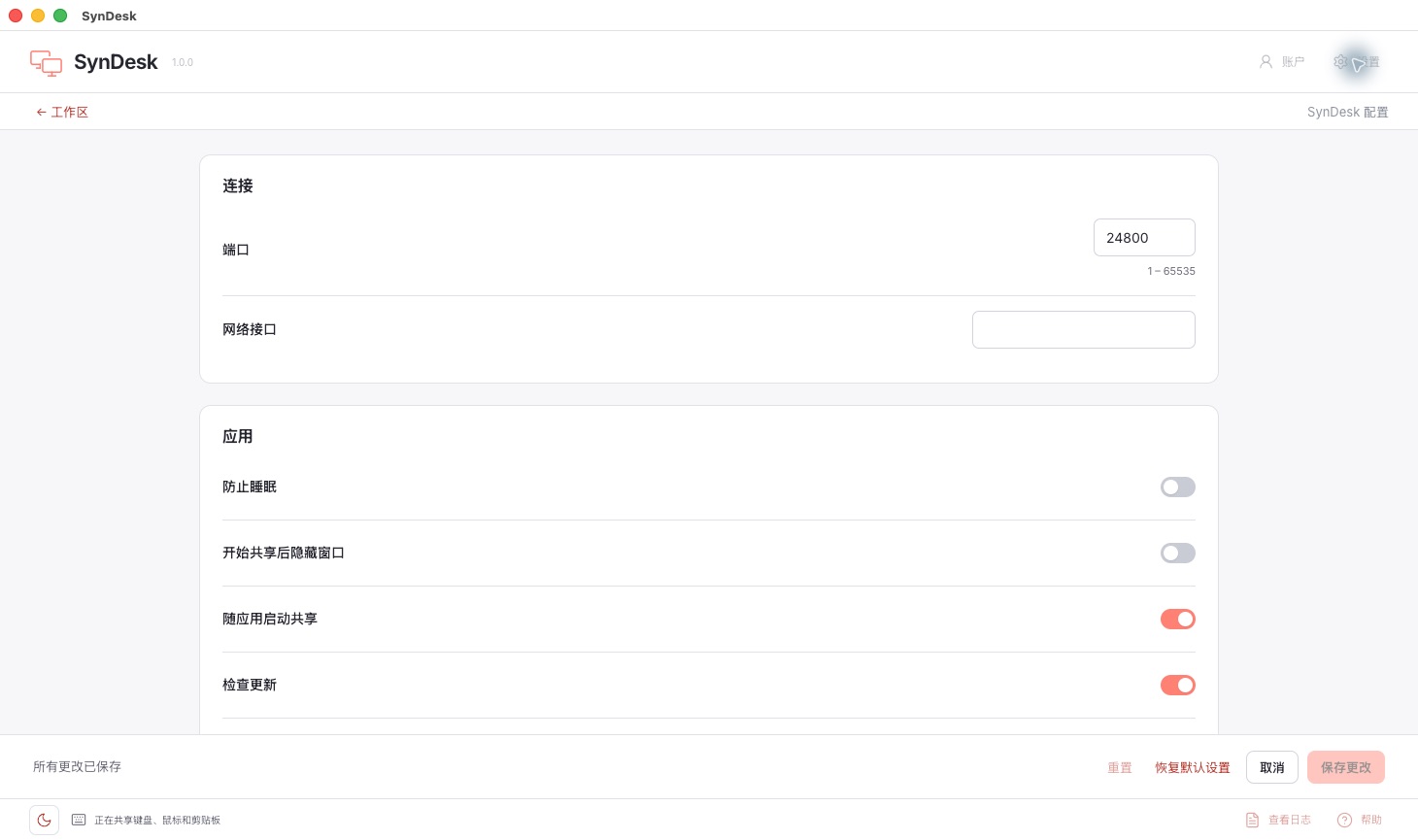
Two device limits. The same features.
US$58 for 3 computers. US$78 for 5. Pay once, with no monthly or annual fees.
Registration includes a 3-day trial. No card required. No automatic charge.
See lifetime plansExplore keyboard sharing, cross-platform copy-paste and what a software KVM can do.
Before you start
Connections, compatibility and what is included.
Your computers need to reach each other over the network. Start on the same local network and check that your firewall allows Syndesk to connect.
Syndesk supports Windows, macOS and Linux. Install the appropriate version on each computer and check the published system requirements on the download page.
Yes. The computer with the keyboard and mouse acts as the server; the others are clients. Configure each computer’s name and the server address.
Enable clipboard sharing to copy and paste between computers. Supported content depends on the operating system and version. General file transfer is not included.
No. Syndesk shares keyboard and mouse input. Each computer keeps using its own display and apps. It does not stream or mirror screens.
TLS encryption is enabled by default. Check the other computer’s certificate fingerprint on your first connection, trust only your devices and leave encryption enabled.
Controlling input requires system permissions. On macOS, follow the prompts for Accessibility and related permissions. On Linux, check your desktop environment and input support, especially under Wayland.
The download page lists published installers, system requirements and checksums by platform. Check your operating system, processor and release status before downloading.
Choose your platform and check the system requirements before downloading.