 Syndesk
I built SynDesk because I wanted to stop buying a second keyboard and mouse
When it came time to equip a second computer, I hesitated.
I already had a keyboard I liked and a mouse that felt right. Adding another computer seemed to mean buying another set of devices that did the same job.
Then there was the space. Two keyboards, two mice, and another decision about where everything should go. A message arrived on the other machine, and I reached for its mouse. Sometimes I grabbed the wrong one.
What I wanted was simple. Could the equipment I already owned serve both computers on my desk?
That is the need behind SynDesk.
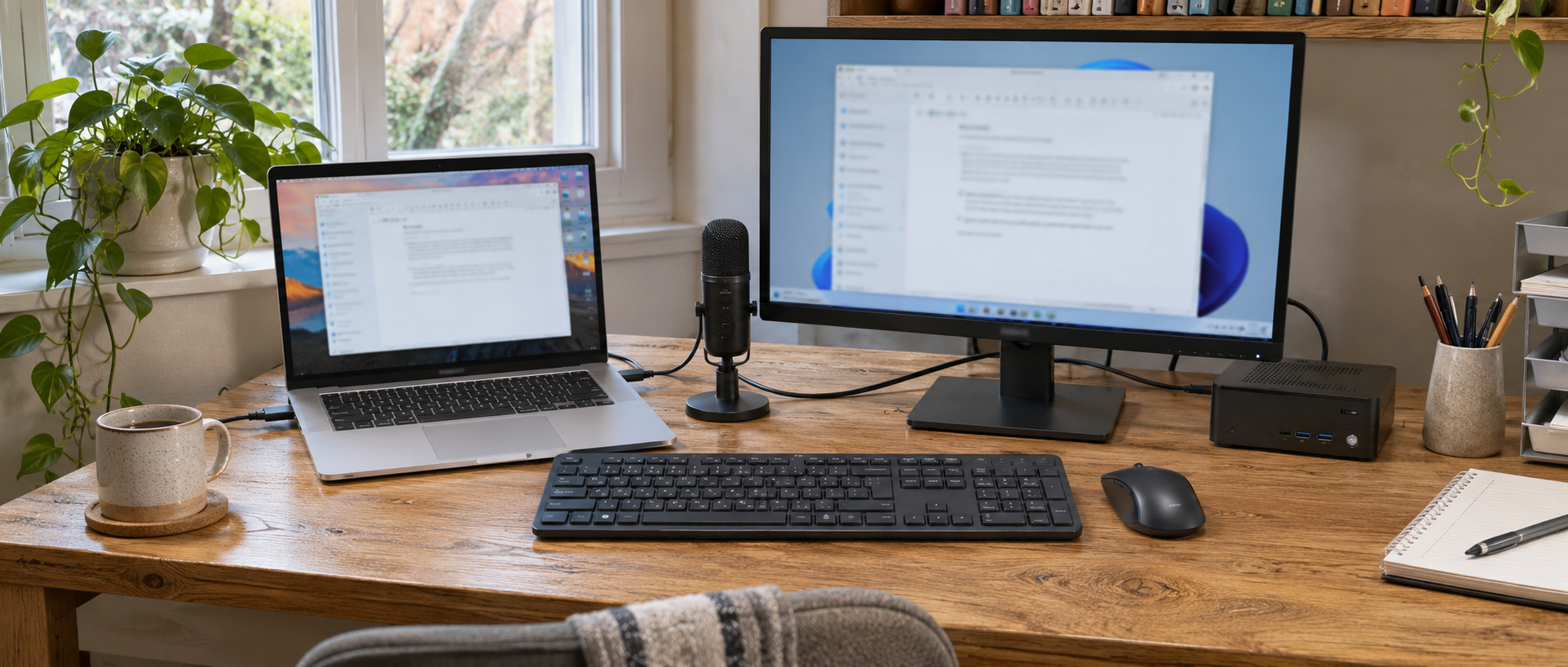
A second computer brings another set of decisions
There are good reasons to keep a Mac beside a Windows PC. You may like the working environment on one and need specific software on the other. One runs a task while the other stays available for writing and research.
Both computers earn their place. But buying another keyboard and mouse adds cost and takes up space. A microphone brings another question: which computer should it connect to when the meeting is on the other machine?
I wanted the computers to keep doing their own jobs while sharing the equipment within reach.
Move to the other screen and keep typing
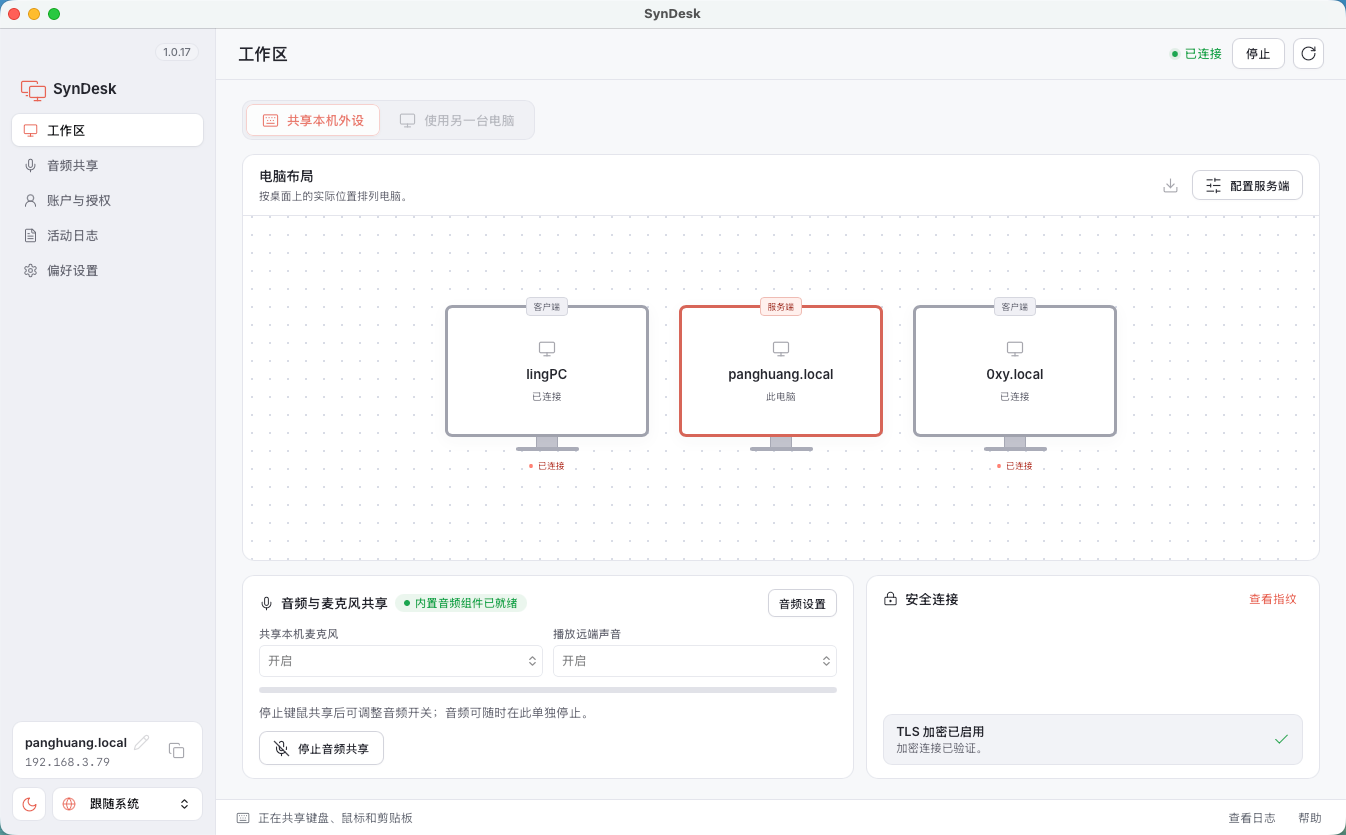
SynDesk connects computers over a local network to share keyboard and mouse input, clipboard content and configured audio.
Arrange the computers in the software to match their positions on your desk. With a Mac on the left and a Windows PC on the right, move the pointer past the Mac’s right edge to operate the PC. The same keyboard now types there. Move back when you need to return.
Let Windows keep running a task while you write on the Mac. Move across to answer a message, then return to what you were doing.
The keyboard and mouse you already enjoy can stay in use.
A copied sentence should be easy to use on the other computer
You find a link on one computer and want it in a document on the other. Or you write a short note that belongs in an application running on the second machine.
Sending it to yourself works, but it adds a detour for a small piece of text.
With clipboard sharing enabled, copy on one computer and paste on the other. Links, notes and code snippets can follow the task. Supported content types and formatting depend on the operating system and build. Start by checking a short piece of plain text.
Let the other computer use your microphone
If you bought a microphone for clearer meetings or recordings, you probably want to keep using it when the call is on a different computer.
SynDesk can share a physical microphone with the receiving computer. Select SynDesk Microphone in its meeting or recording application to use the incoming audio.
Audio can travel back as well. The other computer sends its selected local audio, and the host plays it through the headphones or speakers you choose.
Audio requires the appropriate component, system permissions and device configuration. Check the input in the actual meeting application before a call. Start with headphones. Speakerphone setups also require reference-audio configuration and a check for echo.
Start with the equipment you want to share
Connect both computers to the same local network and install SynDesk on each. Set up the host and client, confirm the device identity and TLS fingerprint, and arrange the screens to match the desk.
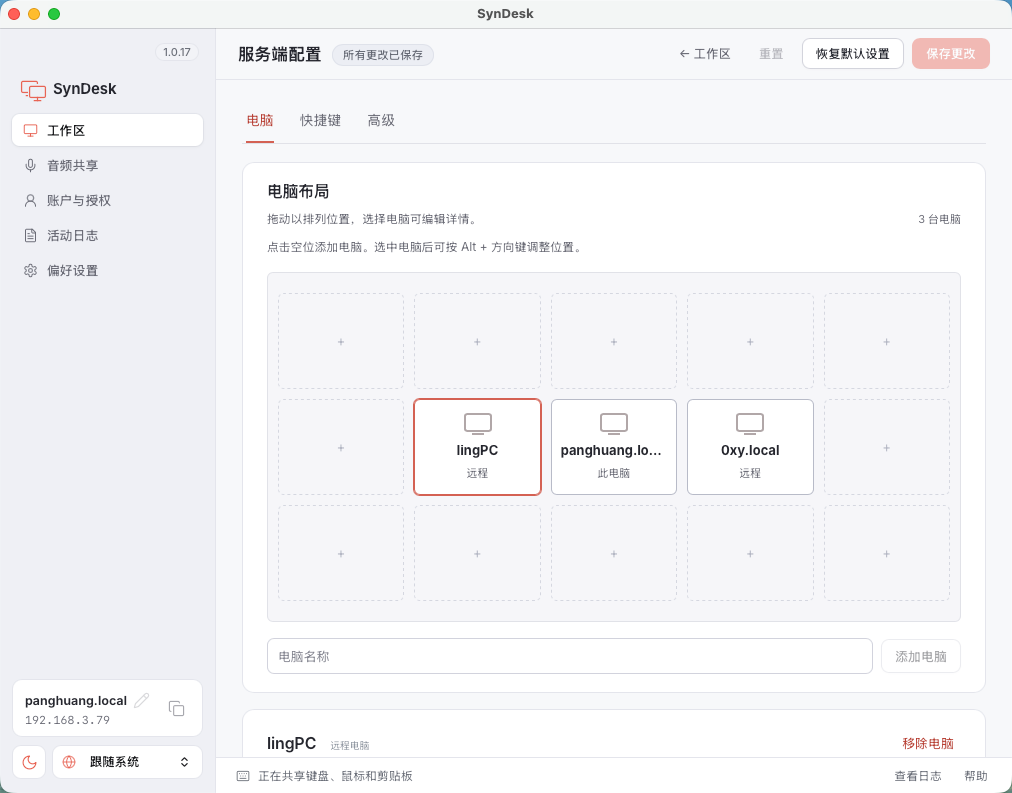
Open a text field on each screen. Move the pointer across, type a few words, then copy a line and paste it on the other computer.
If that is a task you repeat throughout the day, try using it in your normal routine. Configure microphone sharing and audio return when you need them. SynDesk also has an option to start sharing when the application launches.
My starting point was modest: make better use of equipment I had already bought, and make my desk a little easier to work at.
If you keep a Mac and a PC side by side, I hope SynDesk can help with yours.
Explore SynDesk and its downloads
A launch invitation for your own desk
For launch, I have prepared 300 free redemption codes, with a minimum term of one month. There are 120 one-month licenses, 40 six-month licenses, 40 one-year licenses and 100 lifetime licenses. Each supports up to three computers.
Sign in to the campaign page, reveal the term assigned to your account, then redeem it in your account. The deadline is November 22, 2026 at 03:02:36 UTC.
Timed access starts when you redeem, so confirm that your desktop build supports it first. Each account, email address and public IP can redeem once in this campaign. People sharing an office network may share that allowance. Redemption requires consent to display your masked email address and redemption time.
Visit the SynDesk launch campaign
If you try it, tell me which computers are on your desk and what you most want to share between them.
How to claim and redeem
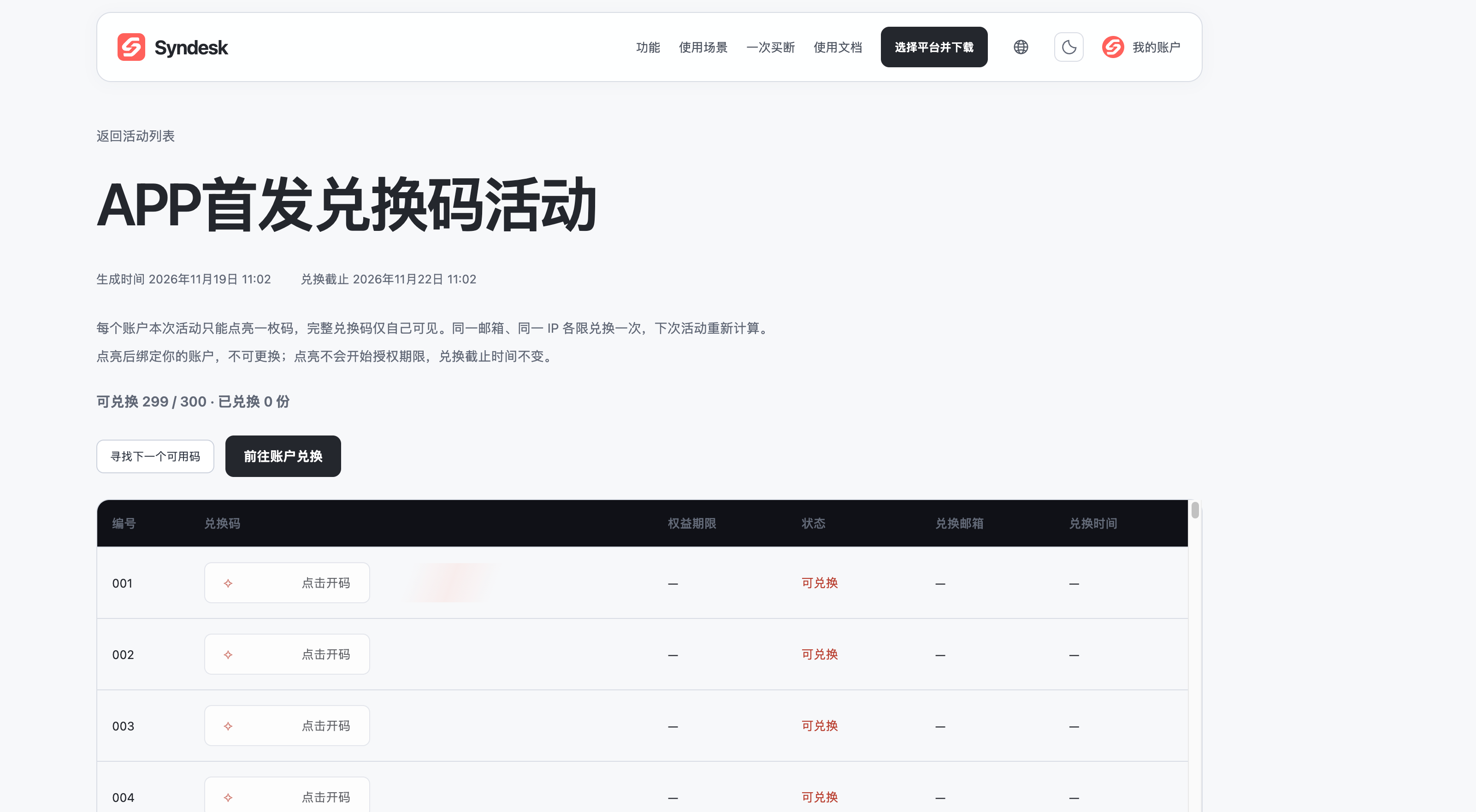
- Open the campaign link above and sign in to your SynDesk account.
- Choose an available code in the table and click its reveal button to see your code and license term.
- Copy the code and click the button to redeem it in your account.
- Paste the code, consent to displaying your masked email and redemption time, then confirm. Check your account for the granted license.
Revealing a code is followed by a separate redemption step. Each account can reveal one code, which stays assigned to that account after refreshing. Timed access begins when you confirm redemption. Complete redemption before the campaign deadline.
The screenshot shows the Chinese interface; the English page follows the same steps.